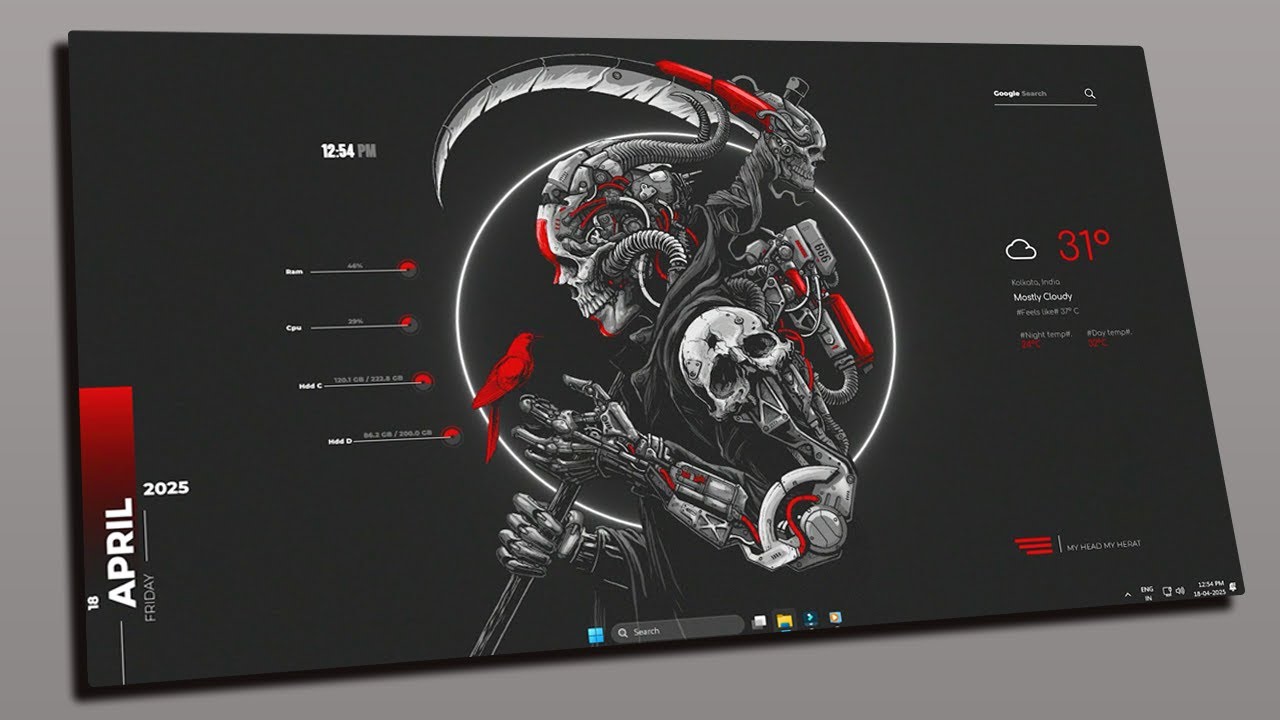
Want to transform your Windows desktop into a stunning, animated setup? With Rainmeter, you can completely overhaul your workspace using the fan-favorite Reaper Suite.
What You Need Before Starting
To achieve the "Reaper" look, ensure you have these assets ready:
- Reaper Rainmeter Suite: The core ZIP file containing the skin.
- Rainmeter Launcher: The base software required to run skins.
- TranslucentTB (Optional): For that clean, clear taskbar.
- Wallpaper Engine (Optional): If you want live, animated backgrounds.
Step 1: Download & Extract
Download the Reaper Suite package and save it to your desktop. Once finished, right-click the ZIP file and select 'Extract All'. This will give you access to the .ini skin files and wallpapers.
Step 2: Prepare the Canvas
Apply the included Reaper wallpaper. Next, let’s clean up the clutter:
- Right-click the Desktop > View > Uncheck 'Show Desktop Icons'.
- This ensures your new widgets don't overlap with old shortcuts.
Step 3: Install the Software
Run the Rainmeter Launcher (.exe). Follow the standard installation prompts. Once installed, you’ll see some default "Skins" appear on your screen. Right-click these and select 'Unload Skin' to start with a blank slate.
Step 4: Load the Reaper Suite
Double-click the Reaper Suite file to add it to your library. To activate your new look:
- Open the Rainmeter Manager from your System Tray (bottom-right icon).
- Find the Reaper folder in the list.
- Open the subfolders and double-click the .ini files to load your widgets.
Step 5: Final Tuning & Locking
Drag the widgets into your preferred position. Once you are happy with the layout, go back to the Rainmeter Manager and uncheck 'Draggable' for each skin. This prevents you from accidentally moving them while you work.
Pro Tip: Install TranslucentTB from the Microsoft Store to make your taskbar disappear, completing the minimalist look.
Final Result 🎉
Congratulations! You’ve successfully moved away from the boring default Windows look to a stylish, custom Reaper setup. Hit 'Refresh All' in your Rainmeter Manager to ensure everything is running smoothly.
Need more inspiration? Check out our list of the top 20 Rainmeter suites for 2026!