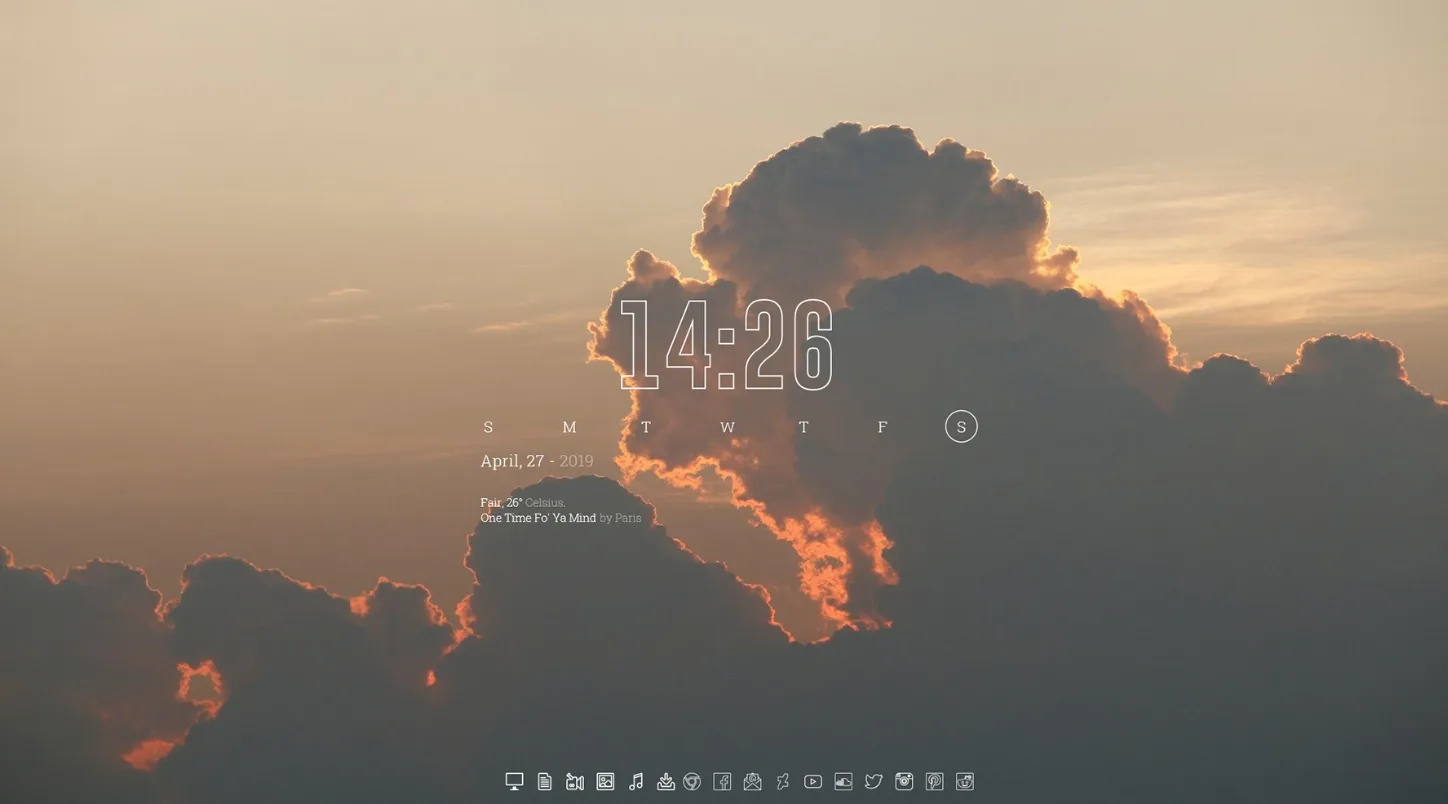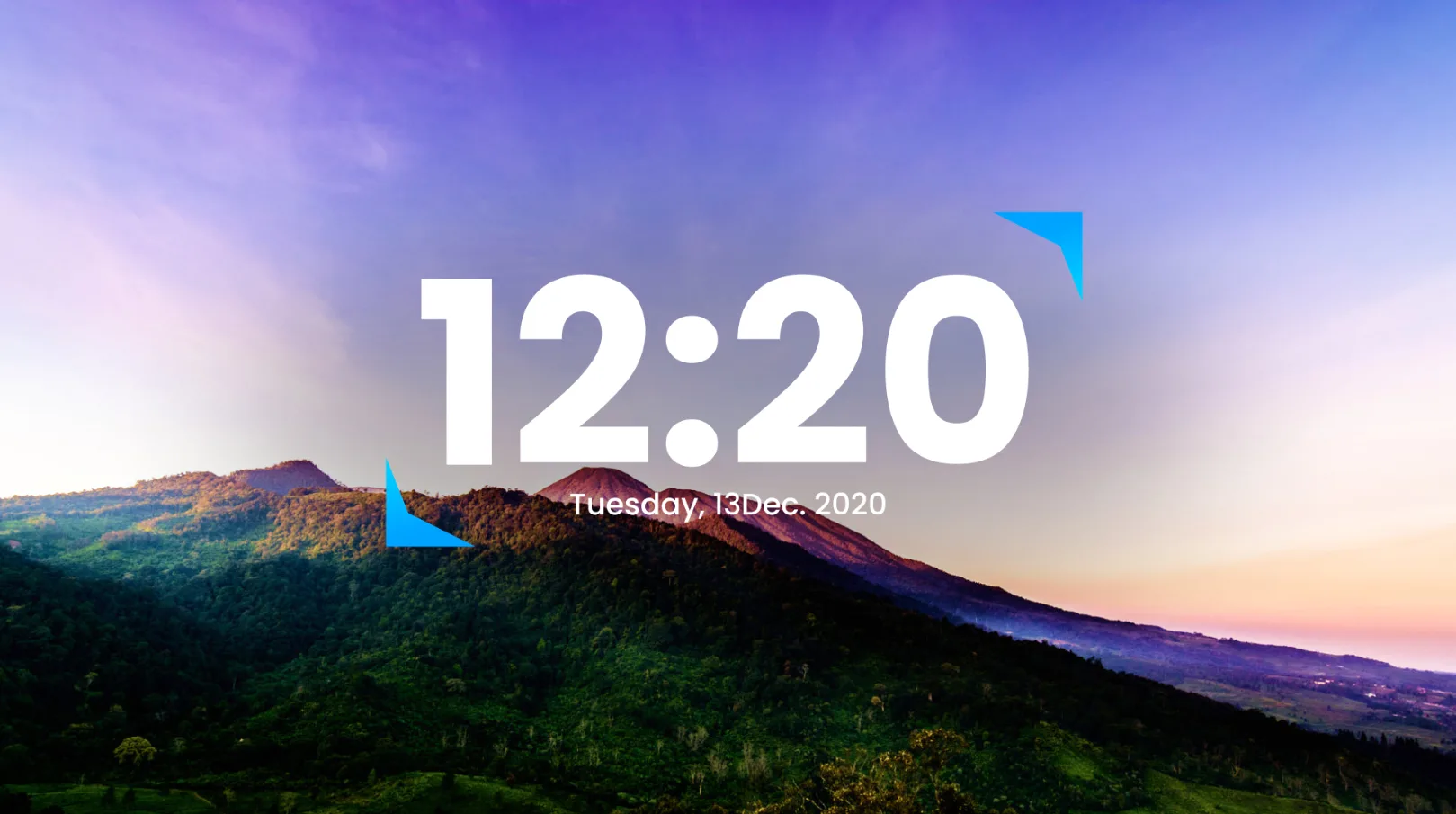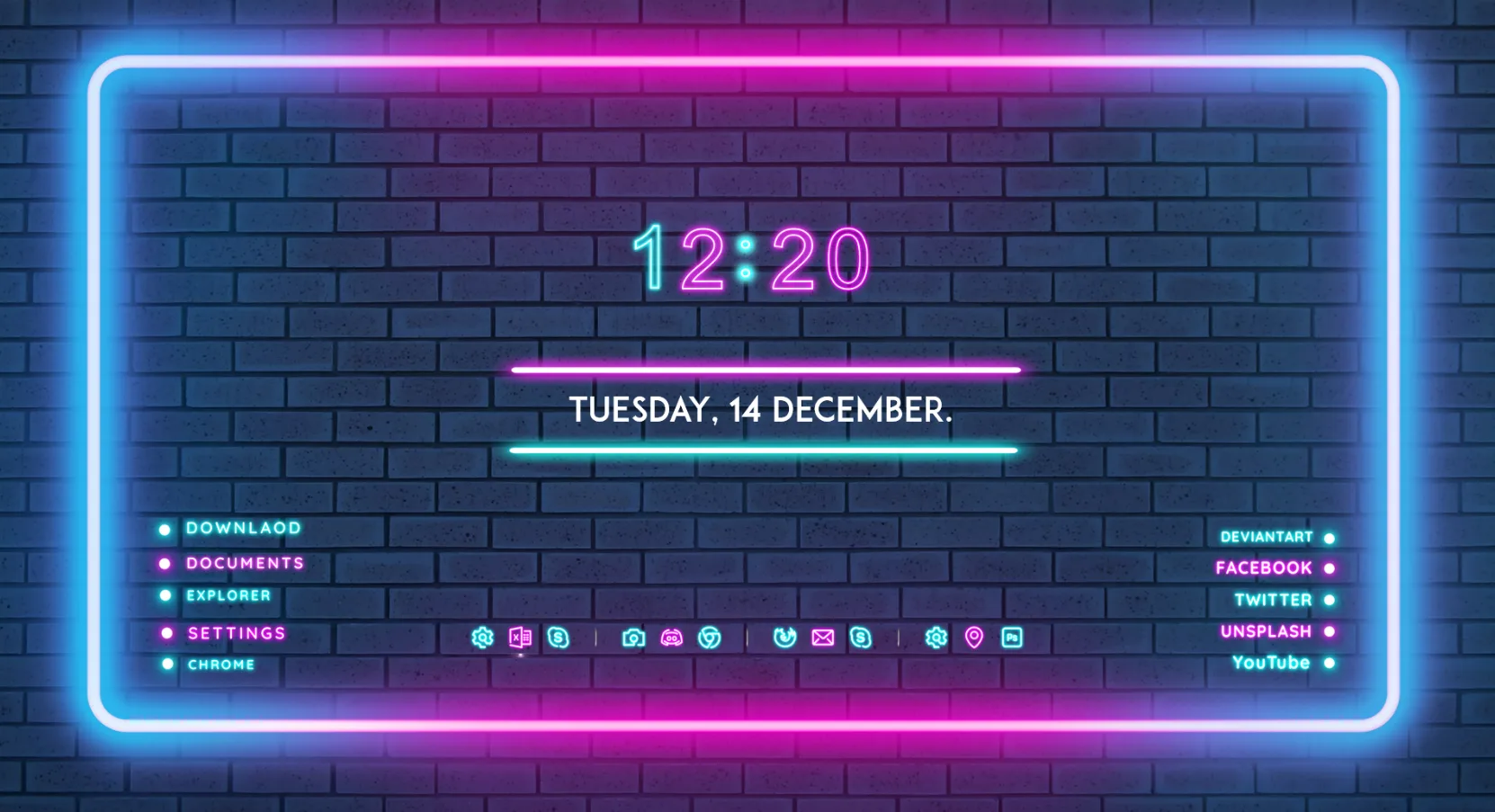
Glow 1.01 is a Rainmeter clock skin created by linkvegas12, a prolific Windows customization designer who runs the popular linkvegastheme.com and maintains an active DeviantArt gallery filled with desktop themes, skins, and icon packs. As the name suggests, this skin is all about one thing: making your clock glow. The result is a striking neon-lit time display that sits beautifully against dark wallpapers, giving your desktop a moody, atmospheric feel without needing a full suite of widgets.
Glow 1.01 is an early release, and the author is upfront about it — the date widget was intentionally left out of this version because getting a glowing date to look right proved tricky. Rather than ship something half-finished, linkvegas12 released the clock component on its own and flagged an updated version as coming. That kind of honesty from a developer is refreshing. What's here is polished: the glow effect is consistent, the typography is clean, and the skin pairs well with dark or deep-coloured wallpapers. The wallpaper shown in the preview was created by linkvegas12 themselves, as were the dock icons in the screenshot.
What's Included
- Glowing clock widget — displays the current time with a neon glow effect that makes the digits appear to emit soft coloured light
Who Is This Skin For?
Glow 1.01 is for users who want a single, visually striking clock widget for a dark desktop setup. It suits gaming battlestations, moody aesthetic builds, and anyone who runs a deep dark wallpaper and wants a widget that actually complements it rather than just sitting on top of it. If you're after a date widget or system monitor alongside the clock, a later version of Glow or a different skin may be a better fit for now.
Requirements
- Rainmeter 4.0 or higher (free download from rainmeter.net)
- Windows 7, 8, 10, or Windows 11 (32-bit or 64-bit)
- No additional plugins required
How to Install
- Download the .rmskin file from the DeviantArt page linked below
- Make sure Rainmeter is already running — you should see its icon in your system tray
- Double-click the downloaded .rmskin file to open the Rainmeter Skin Installer
- Click Install to add the skin to your library
- Open Rainmeter, go to Manage → Skins, and find Glow in the list
- Click the .ini file and press Load — the glowing clock appears on your desktop
- Drag it to your preferred position on screen
For the best visual effect, pair Glow with a dark or near-black wallpaper — the glow effect is most impressive when there's contrast behind it. On light or busy wallpapers, the effect can get lost. The preview wallpaper was made by linkvegas12 and may be available from their DeviantArt page or linkvegastheme.com.
About the Author
linkvegas12 is a Windows customization designer who releases themes, Rainmeter skins, icon packs, and wallpapers through both DeviantArt and their personal site, linkvegastheme.com. Their work spans a wide range of styles — from OS-inspired suites to neon and minimal designs — and has accumulated hundreds of thousands of views across platforms.
View the original release and all of linkvegas12's work on DeviantArt: Glow 1.01 by linkvegas12 on DeviantArt